
Candidate documents can be deleted from the candidate profile when they are no longer needed.
NOTE:
Deleting a candidate document only removes it from the candidate’s profile. The document will remain available in the Documents library.
Deleting a candidate document only removes it from the candidate’s profile. The document will remain available in the Documents library.
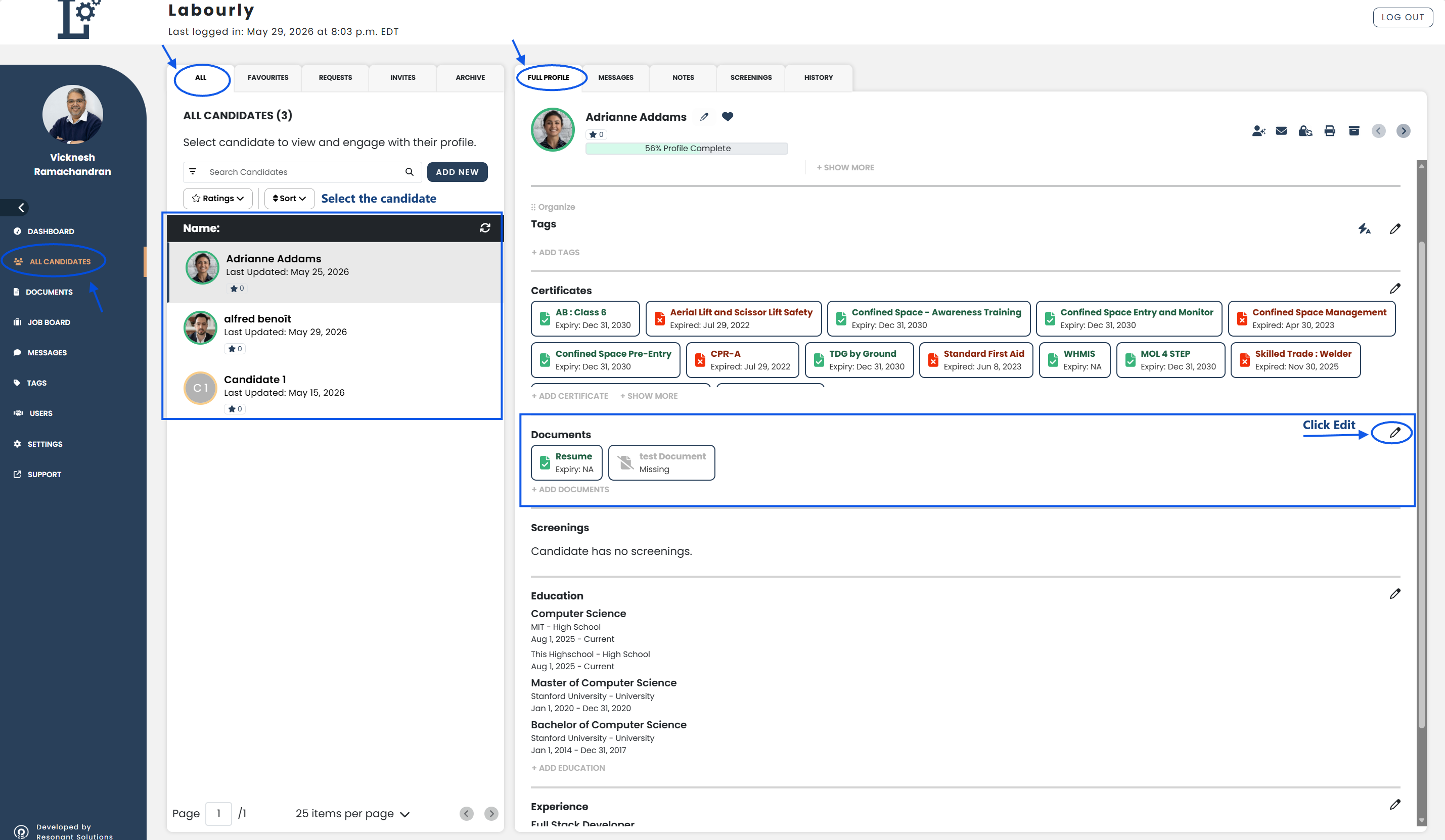
a. Access the Candidate Profile:
- Go to All Candidates from the left-hand menu
- From the candidate navigation panel, click ALL
- Select the candidate you want to update
The candidate profile will open in the candidate profile area on the right side of the page.
b. Access the Documents Section:
- Click the FULL PROFILE tab
- Scroll to the Documents section
- Click the edit icon beside the Documents section
The documents editor will open.
c. Delete Document(s):
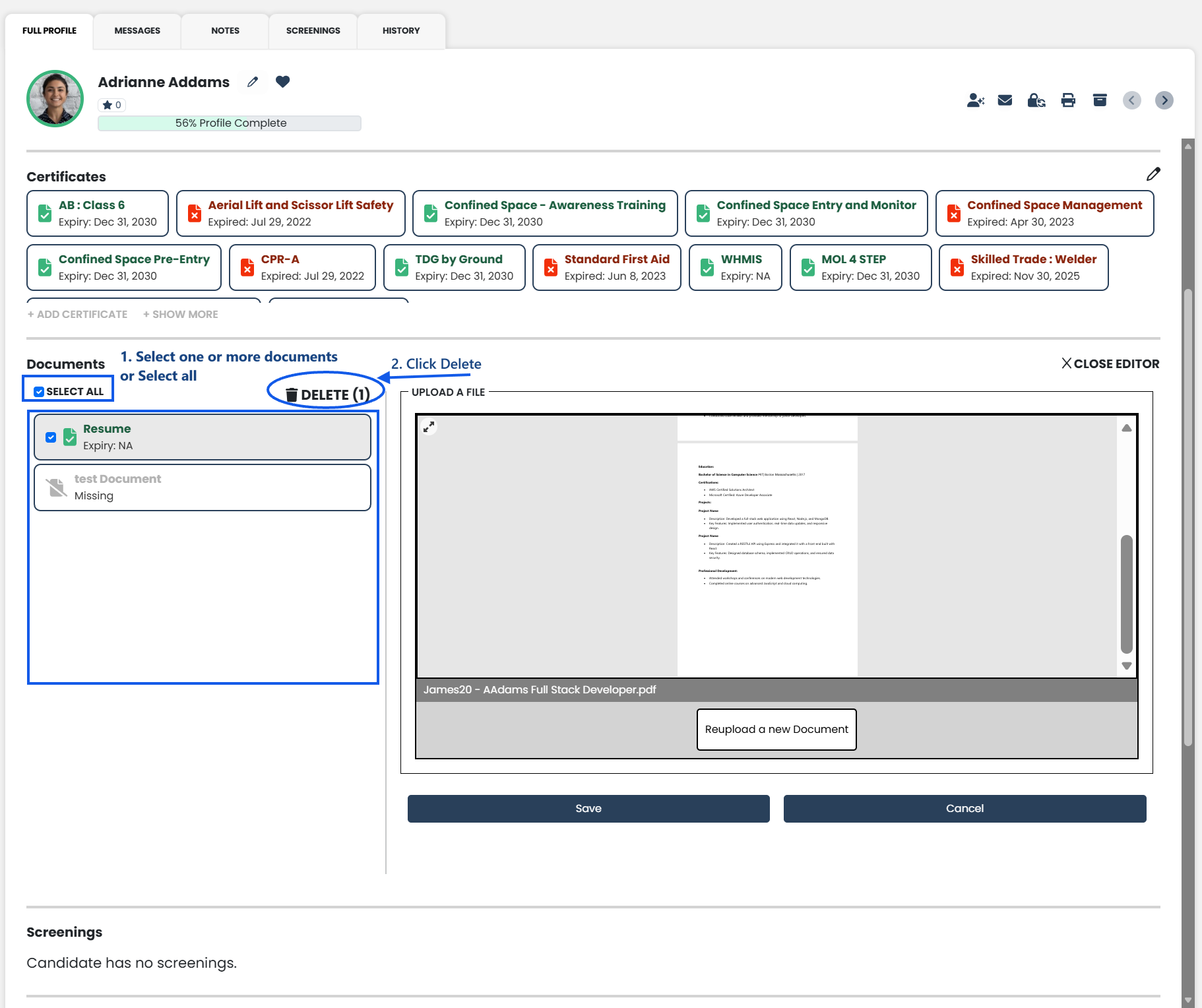
- Select the checkbox next to the document(s) you want to delete
- You can select one or multiple documents at the same time
- To delete all documents in the list, select the checkbox beside SELECT ALL
- Click DELETE
d. Verify:
- Confirm that the deleted documents no longer appear in the Documents section
The candidate documents have been successfully deleted.
See also: