
Candidate certifications, including licenses and training records, can be uploaded and managed from the candidate profile.
NOTE:
Certifications must already exist in the Certifications library before they can be uploaded to a candidate profile.
Candidate certifications can also be uploaded or managed by the candidate.
Certifications must already exist in the Certifications library before they can be uploaded to a candidate profile.
Candidate certifications can also be uploaded or managed by the candidate.
a. Access the Candidate Profile:
- Go to All Candidates from the left-hand menu
- From the candidate navigation panel, click ALL
- Select the candidate you want to update
The candidate profile will open in the candidate profile area on the right side of the page.
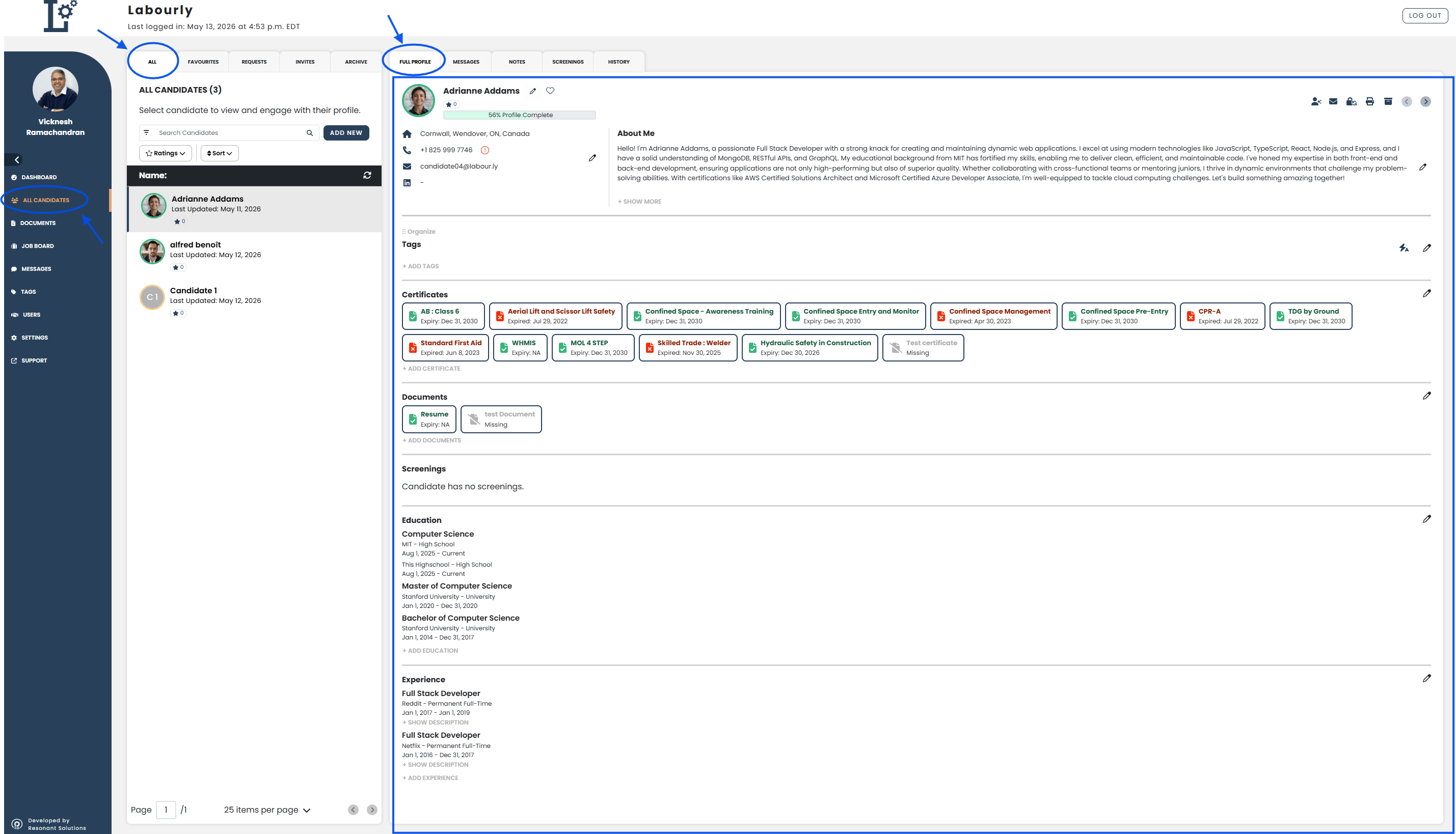
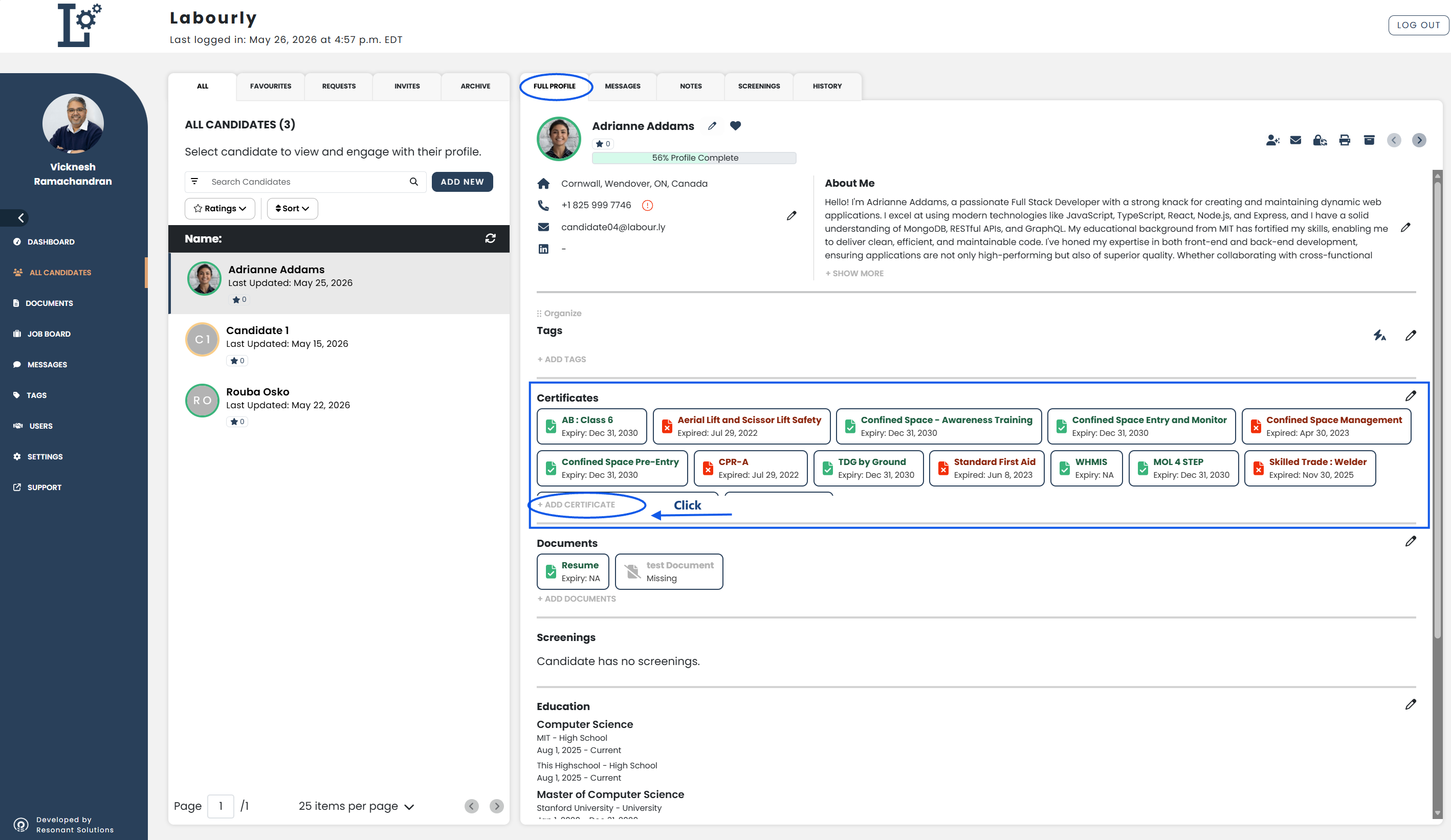
b. Access the Certifications Section:
- Click the FULL PROFILE tab
- Scroll to the Certificates section
- Click + ADD CERTIFICATE
The certifications editor will open.
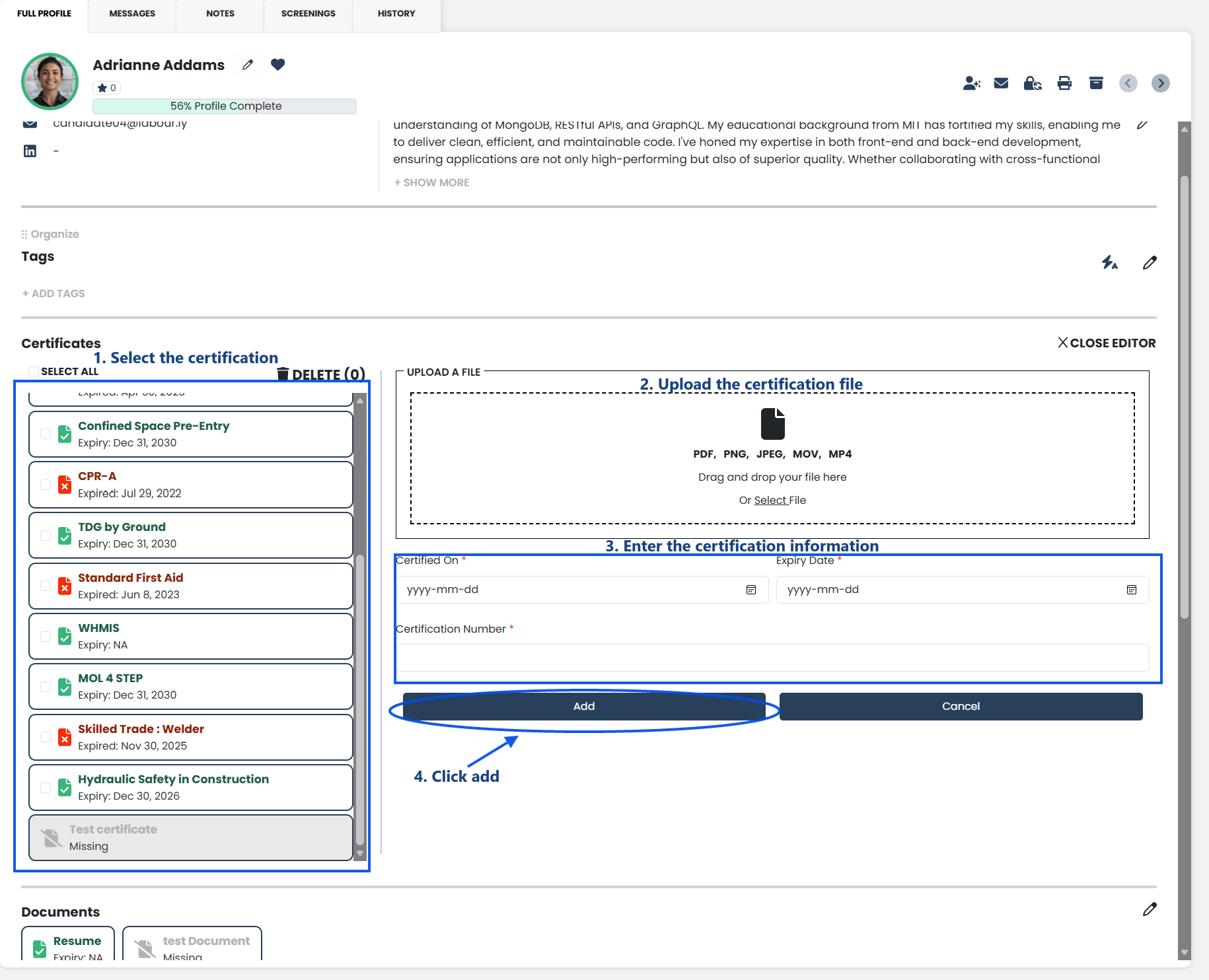
c. Add a Candidate Certification:
- Select the certification you want to upload from the certifications list
- Upload the certification file by dragging and dropping the file or clicking Select File
- Supported file formats include:
- PNG
- JPEG
- MOV
- MP4
- Enter the certification information in the fields provided
- Click Add
d. Verify:
- Confirm that the uploaded certification appears in the Certificates section
The candidate certification has been successfully added.
See also: