
You can view and manage candidate notes from the candidate NOTES tab.
NOTE: Notes are visible to Admins only. Candidates cannot view candidate notes.
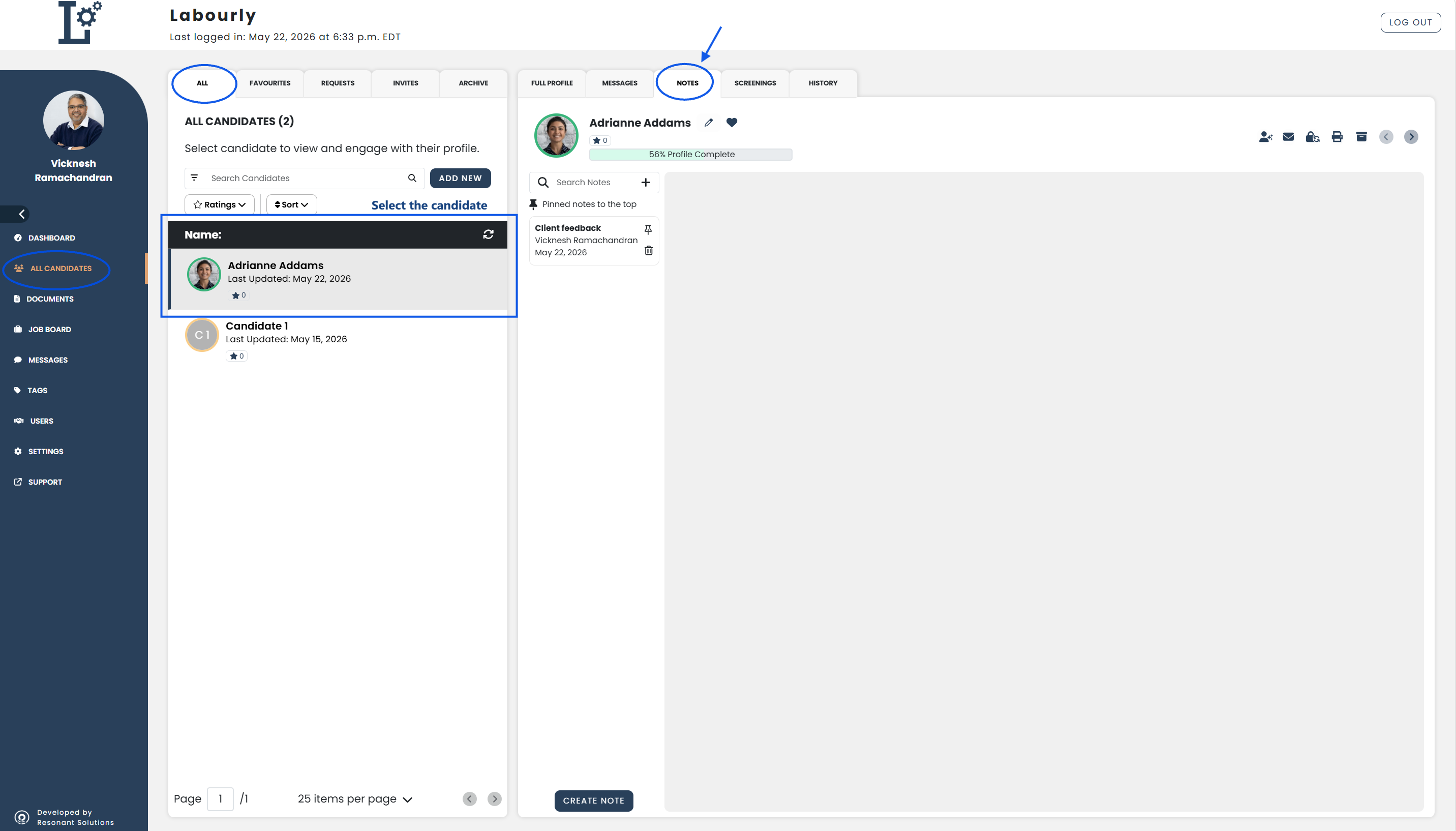
a. Access the Notes Tab:
- Go to All Candidates from the left-hand menu
- From the candidate navigation panel, click ALL
- Select the candidate you want to update
The candidate profile will open in the candidate profile area on the right side of the page.
- Click the NOTES tab
b. Add a Note:
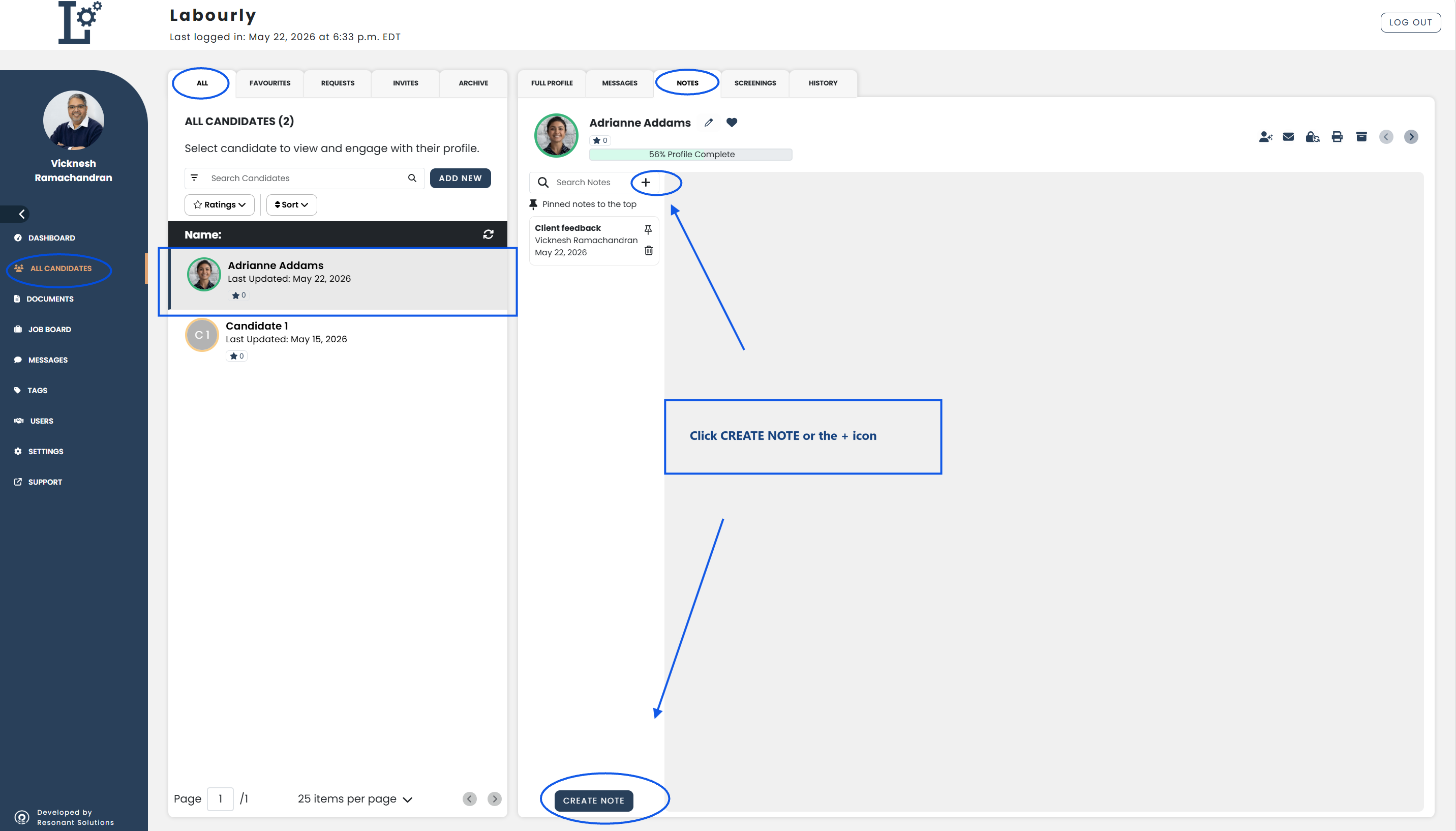
- Click CREATE NOTE or the + icon
- Enter the note information
- Click the save icon
The new note will appear in the notes list.
c. Edit a Note:
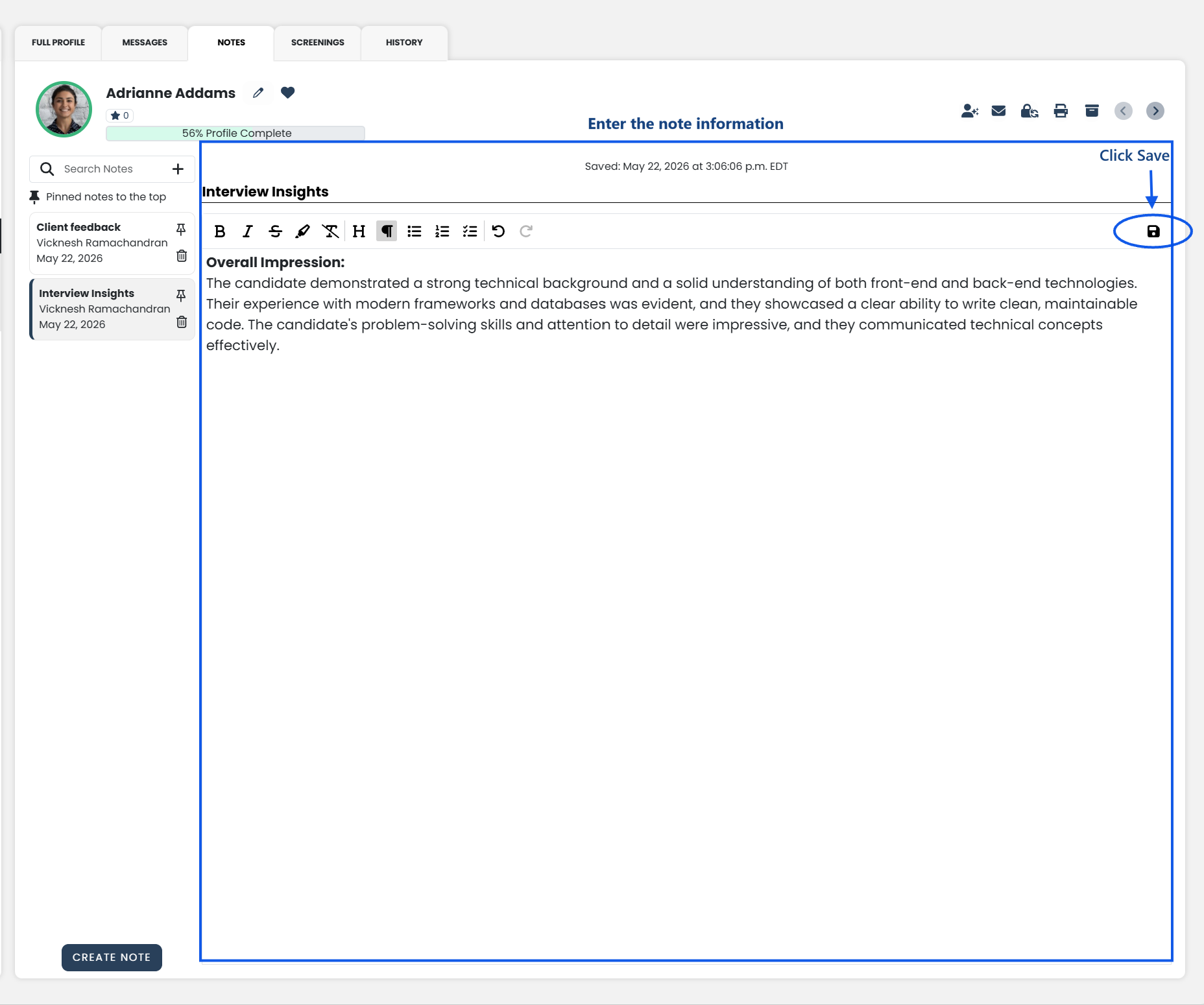
- Select the note you want to update from the notes list
- The selected note will open in the notes editor area
- Update the note information as needed
- Click the save icon
The updated note will appear in the notes list.
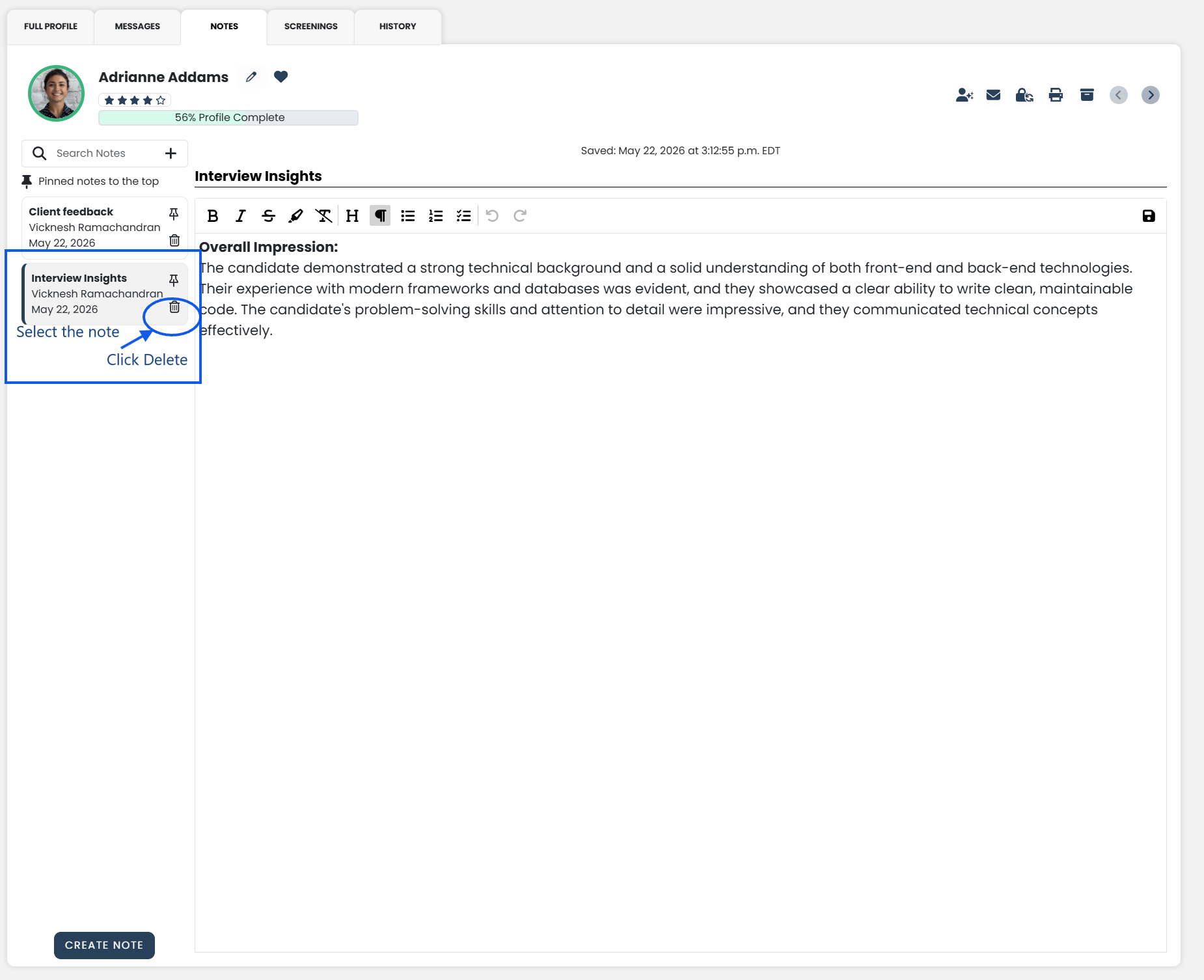
d. Delete a Note:
- Select the note you want to remove from the notes list
- Click the delete icon beside the note
Deleted notes cannot be recovered.
e. Verify:
- Confirm that the note appears, updates, or no longer appears in the notes list
Candidate notes have been successfully updated.
See also: