
You can add candidates manually or by uploading a resume within Labourly.
NOTE:

Uploading a resume allows Labourly to automatically extract candidate information, including contact information, education, and work experience, to help build the candidate profile faster.

For best results, upload high-resolution resumes that are 1–2 pages.

A maximum of 25 files can be uploaded at a time.

For uploading larger numbers of resumes, resumes can also be emailed directly to the Labourly system to create candidate profiles.

Certifications and documents can be uploaded manually after the candidate profile is created.
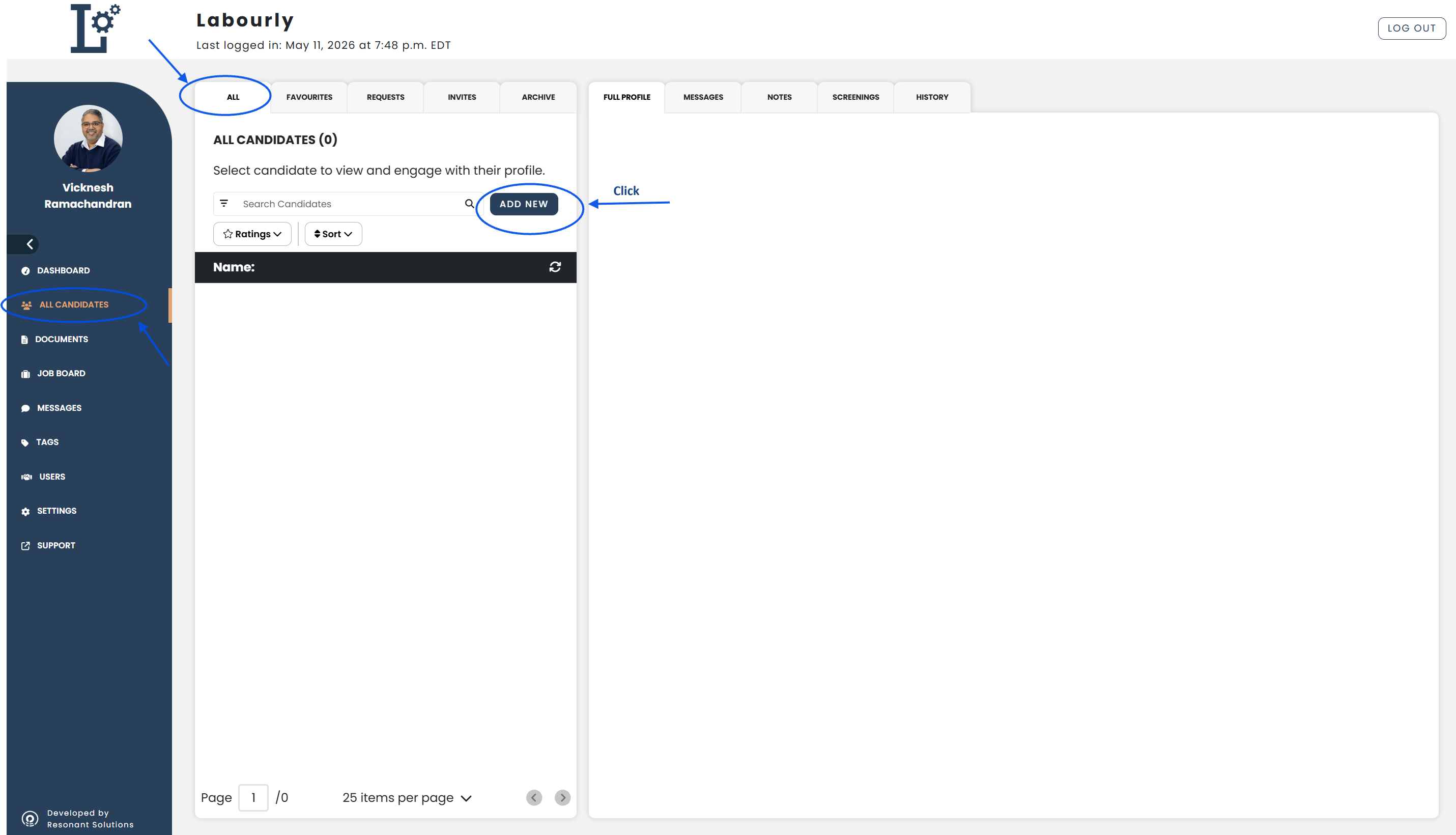
a. Access Candidates:
- Go to All Candidates from the left-hand menu
- From the candidate navigation panel, click ALL
- Click ADD NEW
A candidate profile creation window will open with options to upload a resume or manually create a candidate profile.
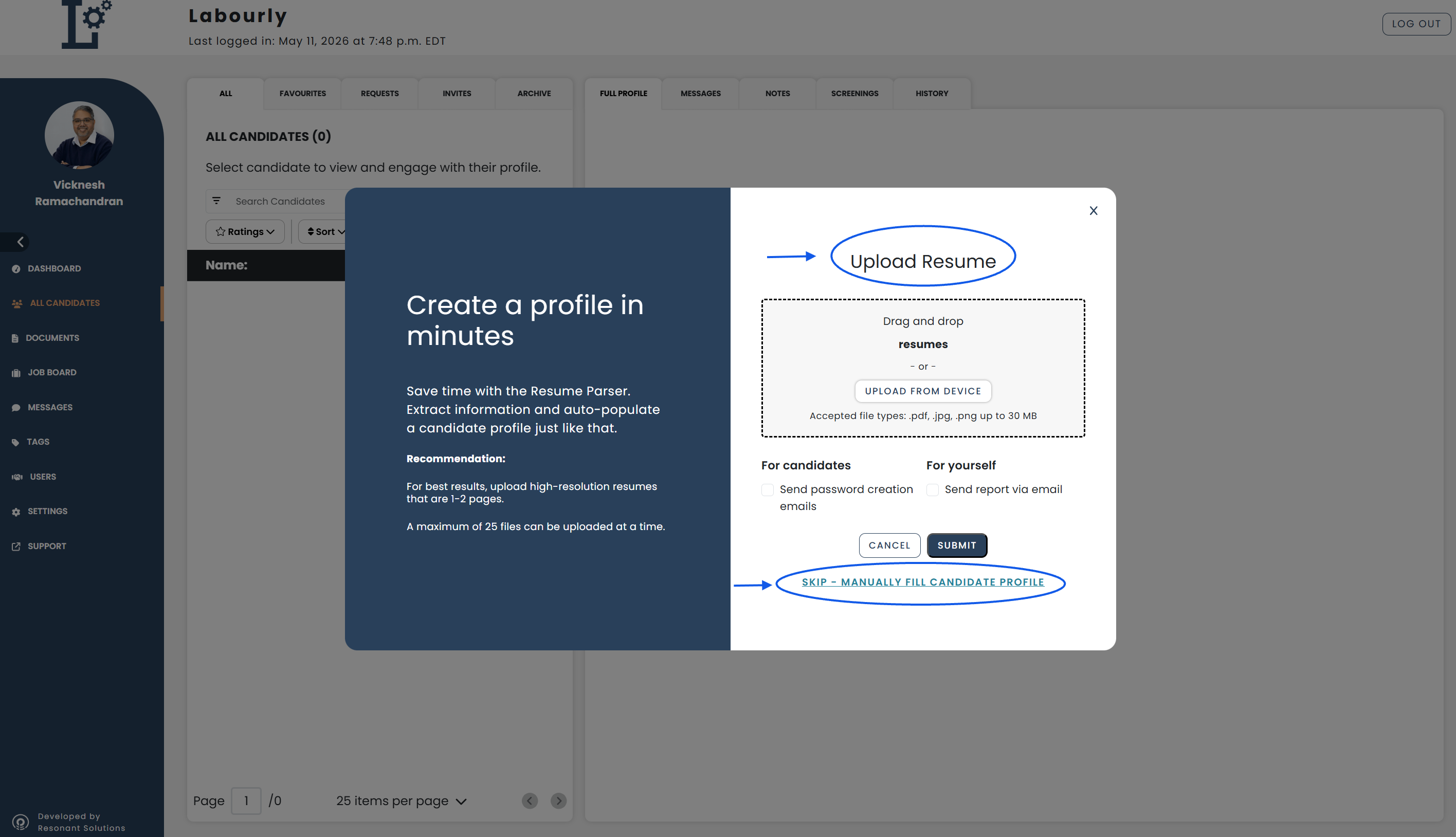
Choose how to add the Candidate:
Option 1: Upload a Resume
View steps
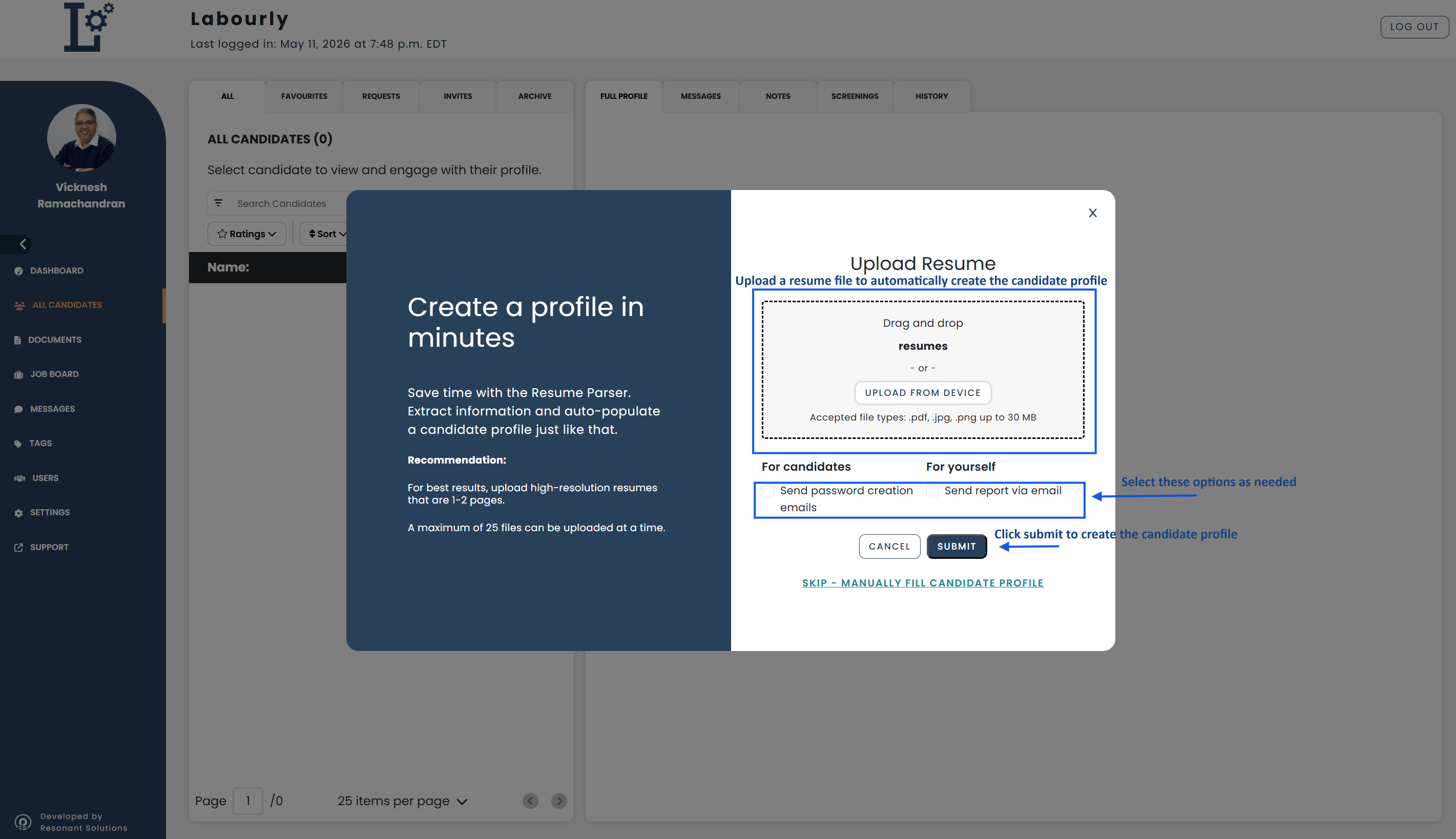
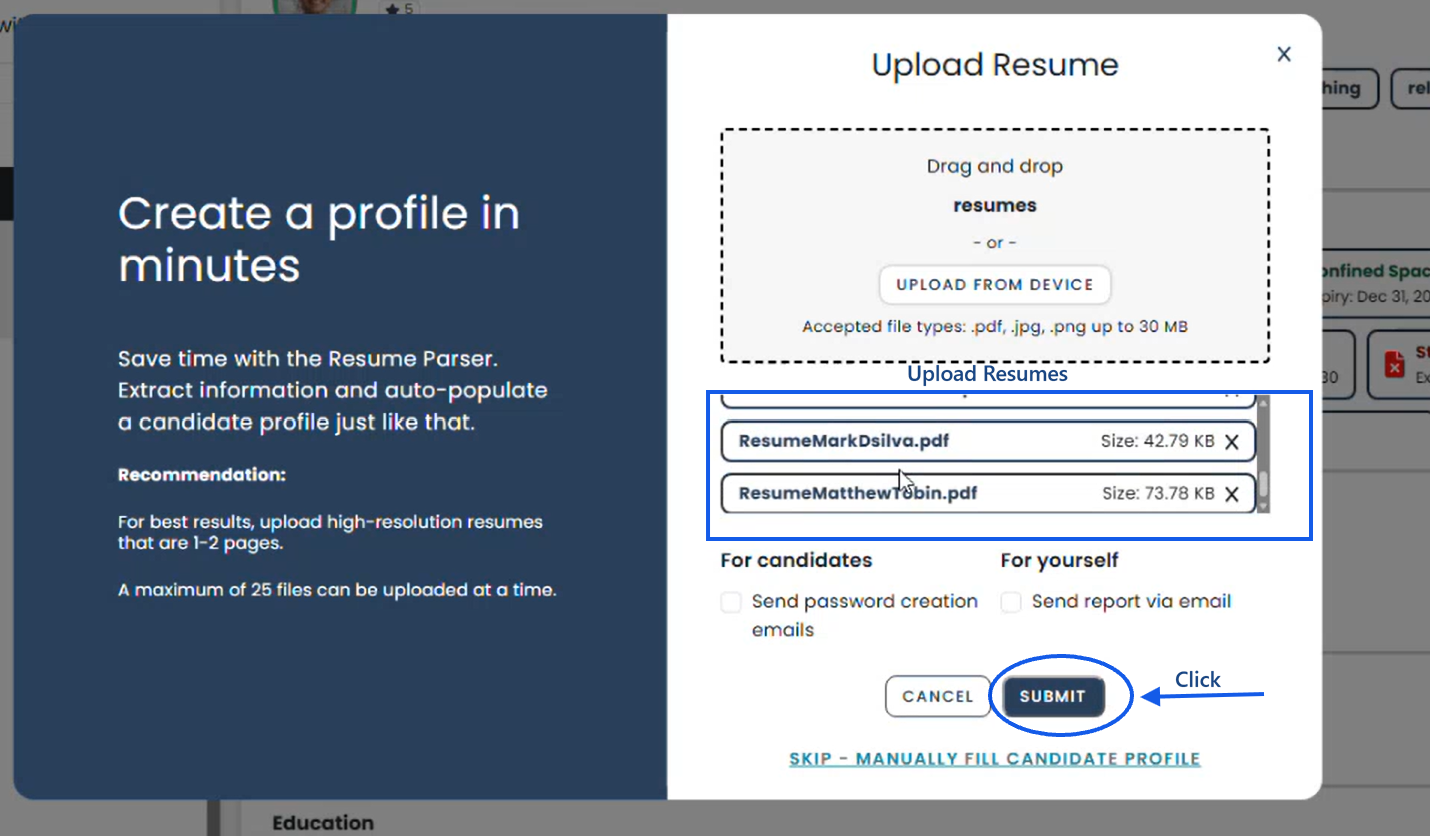
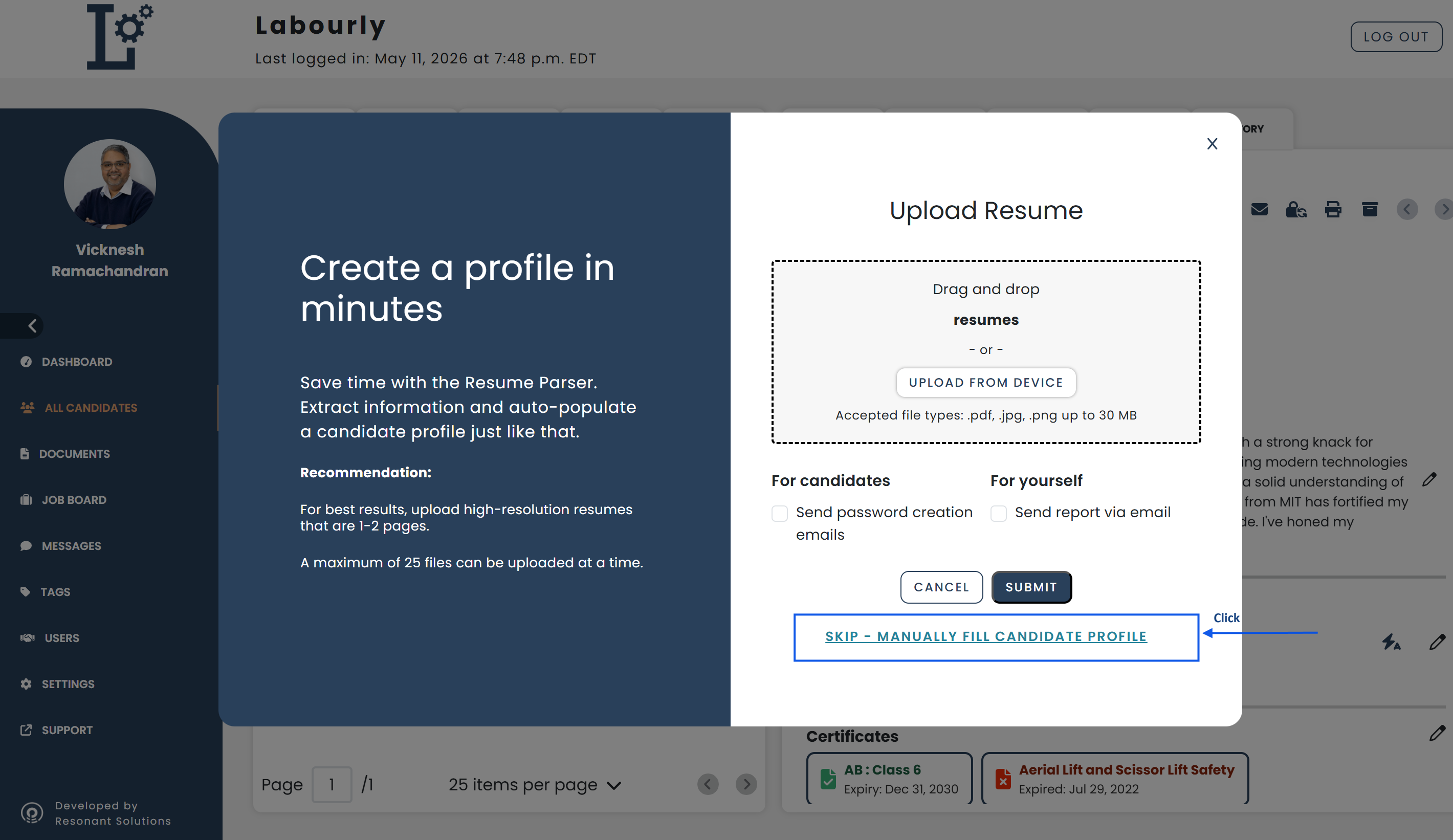
- Drag and drop the resume file into the upload area
- Or click UPLOAD FROM DEVICE to select a file manually
Accepted file types:
- JPG
- PNG
Maximum file size:
- 30 MB
Optional:
- Send password creation emails → Sends the candidate an email with instructions to create their Labourly account password and access their profile.
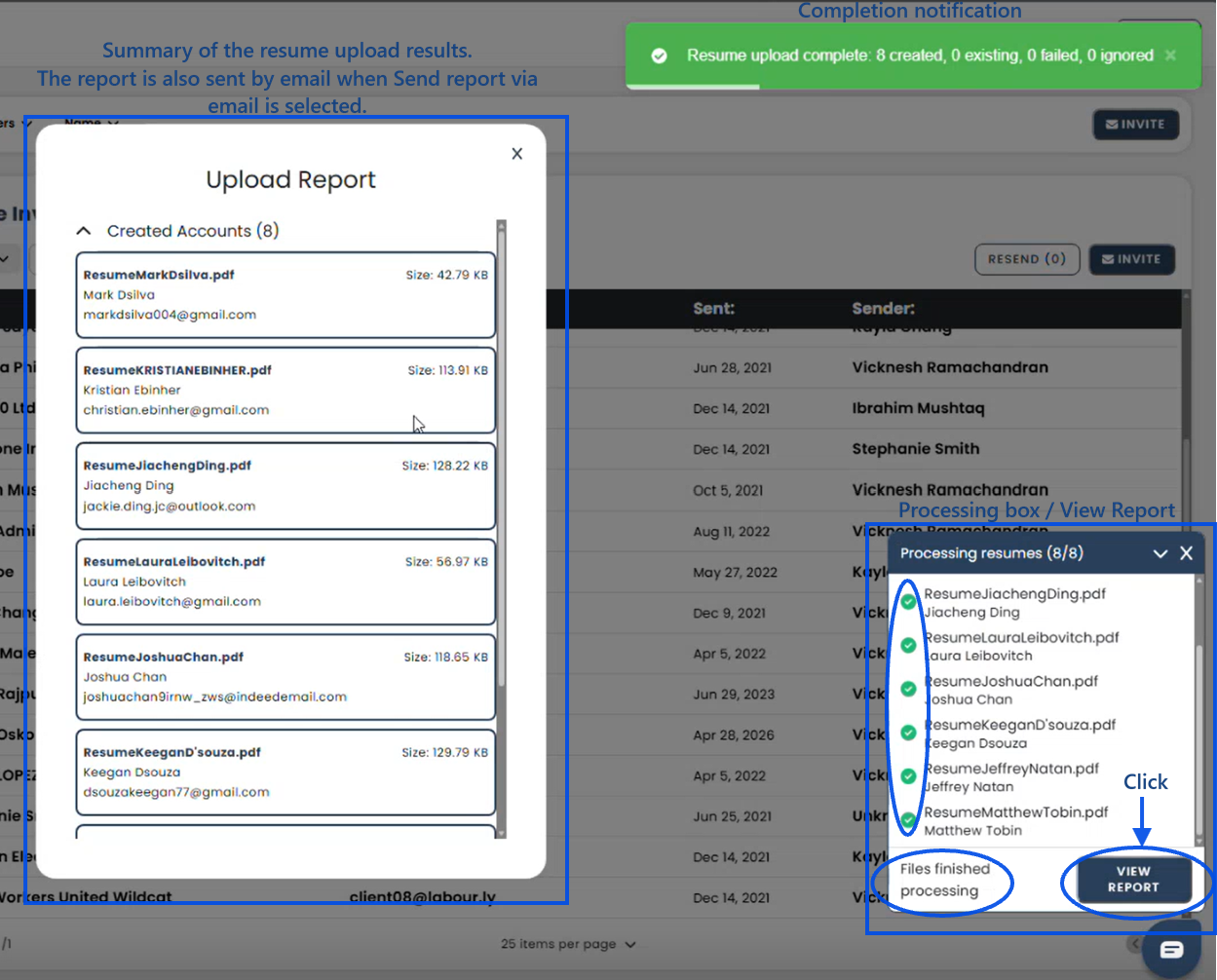
- Send report via email → Sends a resume processing report by email, including the number of resumes processed, candidate profiles created, and any processing errors or unsupported files.
- Click SUBMIT
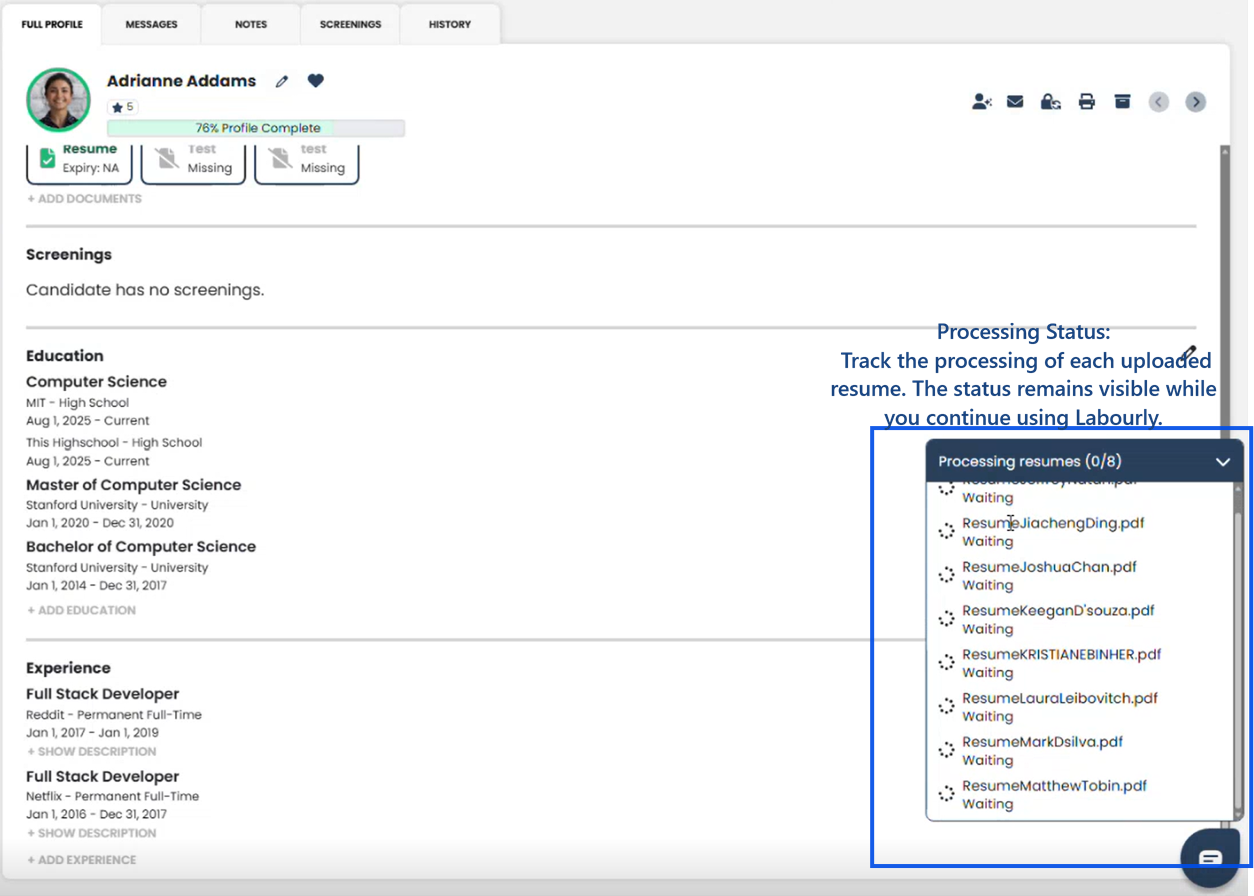
Labourly will process the uploaded resumes and display the processing status for each resume.
You can continue using Labourly while the resumes are being processed. Once processing is complete, you will receive an email and a summary.
Labourly will automatically extract available information from the uploaded resume to help create the candidate profile, including contact information, education, and work experience.
Review the extracted information and update any fields if needed.
Option 2: Manually Fill Candidate Profile
View steps
- Click SKIP – MANUALLY FILL CANDIDATE PROFILE
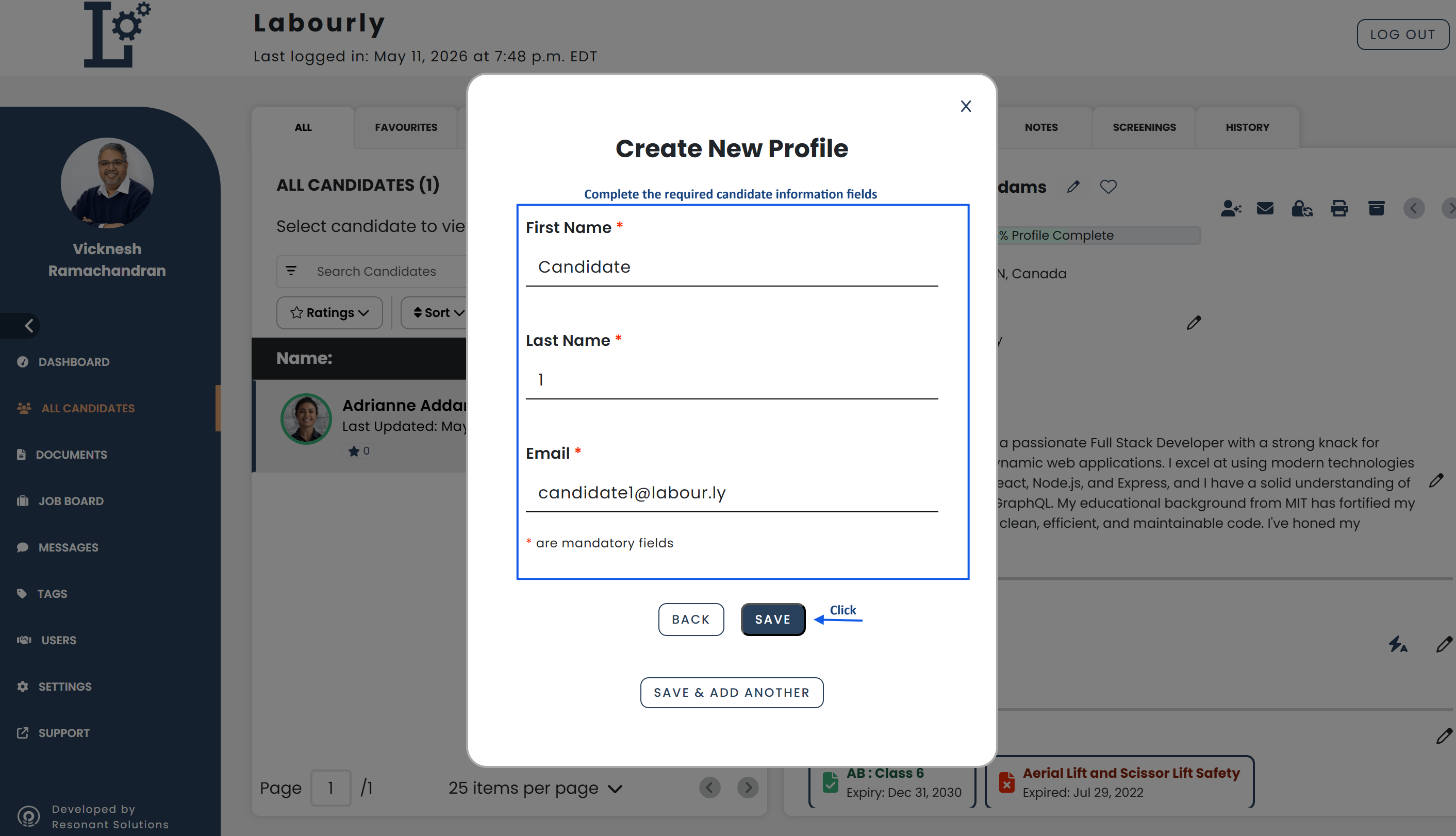
- Complete the required candidate information fields
- Click Save
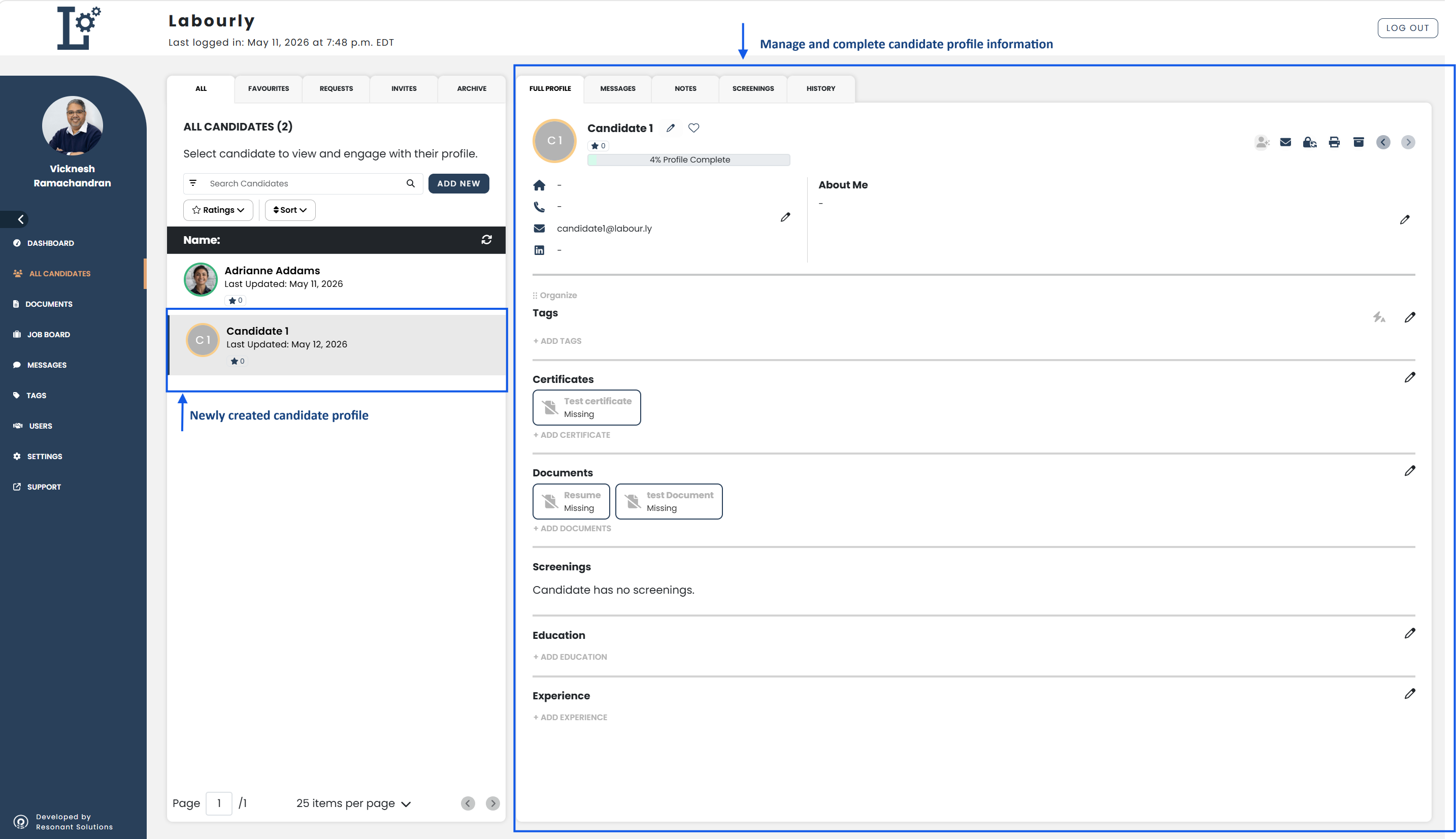
The candidate will now appear in the All Candidates list.
From the candidate profile, you can continue manually completing and managing profile sections, including:
- Contact information
- About Me
- Tags
- Certifications
- Documents
- Screenings
- Education
- Experience
You can also send the candidate a password creation email so they can access their profile and complete their own information.
c. Verify:
- Return to the All Candidates section
- Confirm that the new candidate appears in the candidate list
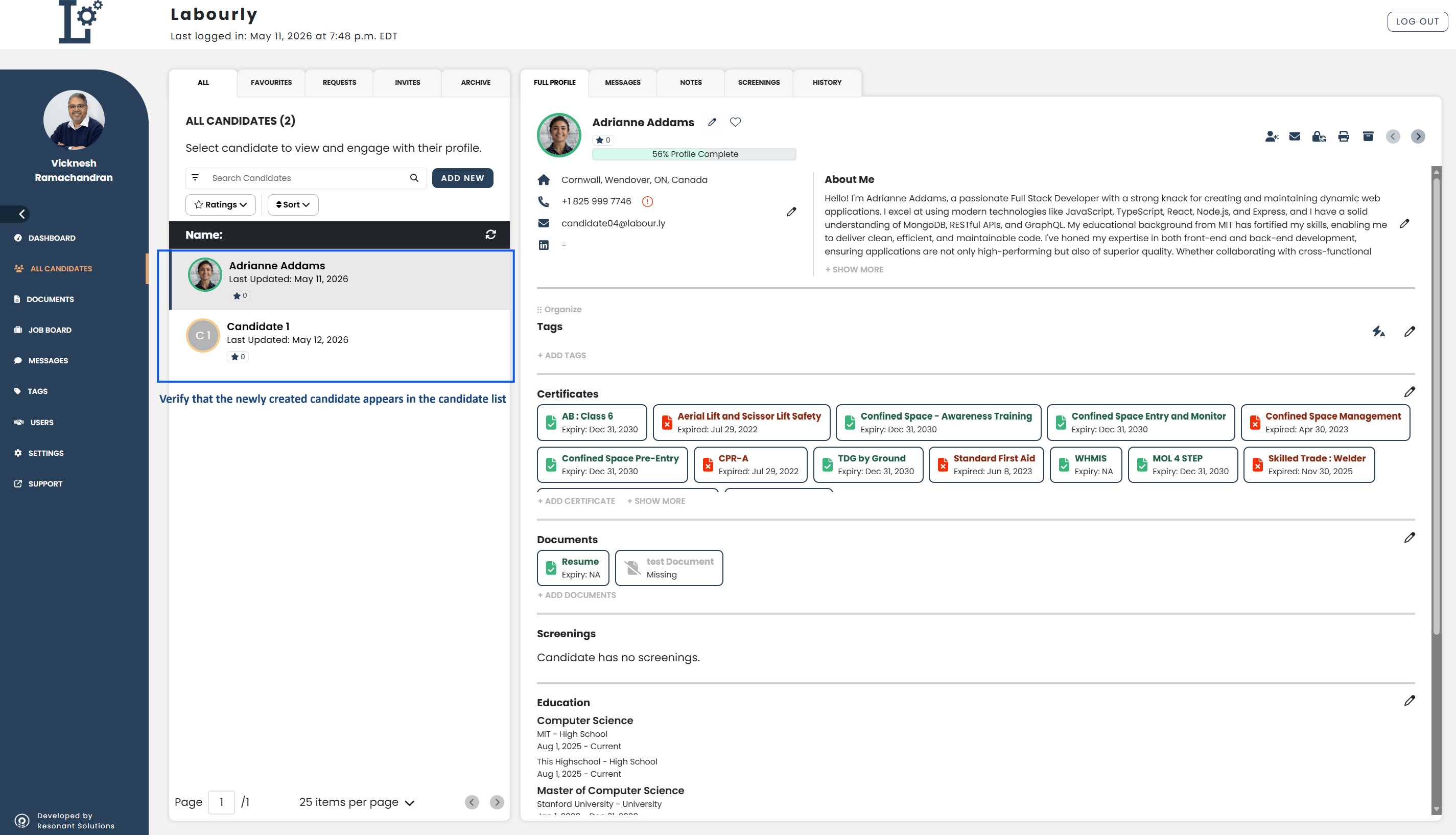
The candidate profile has been successfully created and is now available within the Candidates section.See also: