
You can create certifications to manage candidate licensing and training requirements within Labourly.
Certifications include licensing and training qualifications specific to industry regulations.
NOTE:

Before creating a new certification, we recommend searching the existing certification library first. Labourly includes a pre-populated list of certifications and categories that can be reused and customized to fit your organization’s needs.

Candidates cannot upload certification files until certifications have been created.
To create a certification:
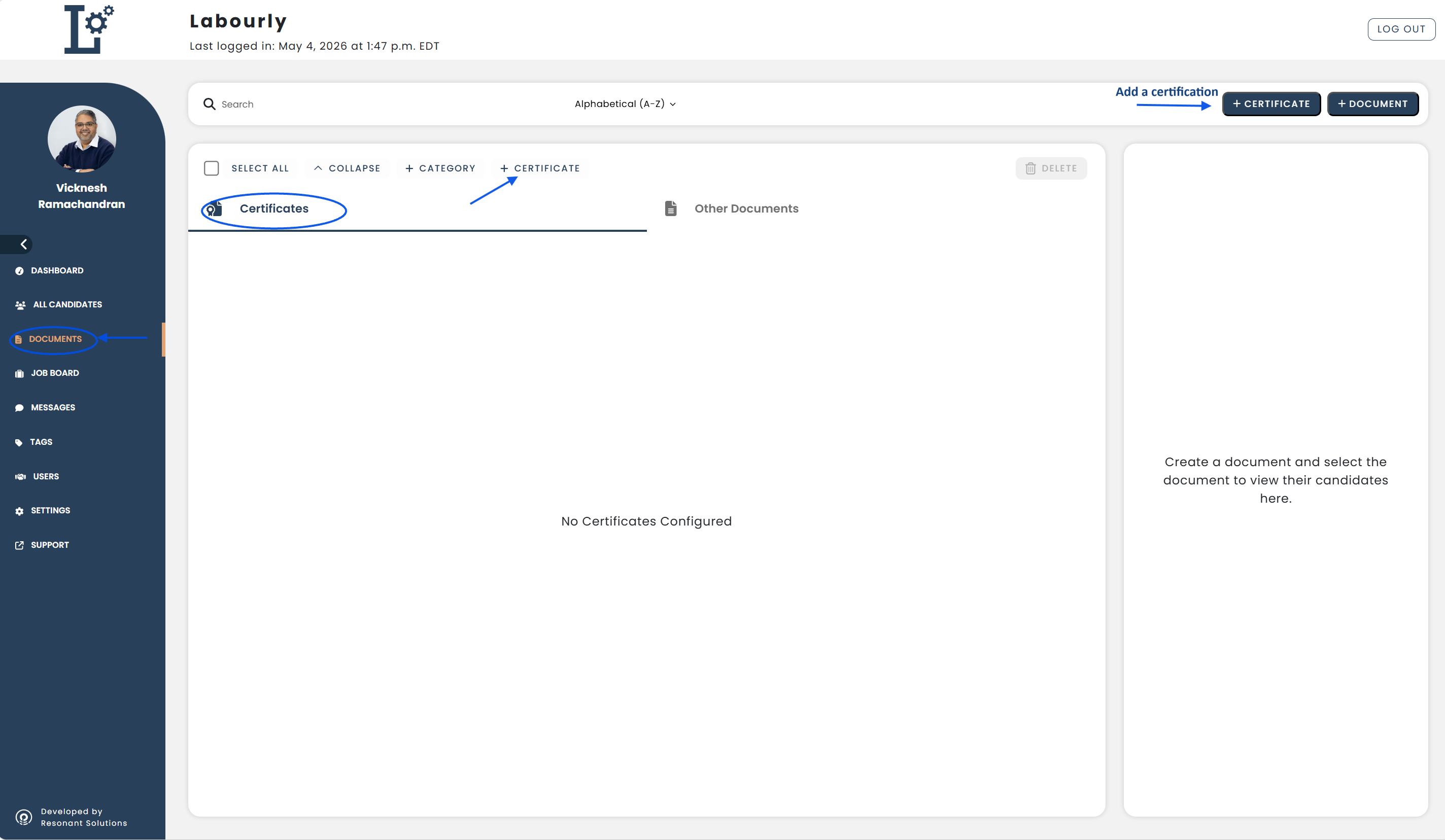
- Go to Documents from the left-hand menu
- Click Certificates
- Click + Certificate
You will be presented with two options:
Select one or more from the list of pre-existing certificates and edit the content to your needs
OR
Create a new certificate from scratch
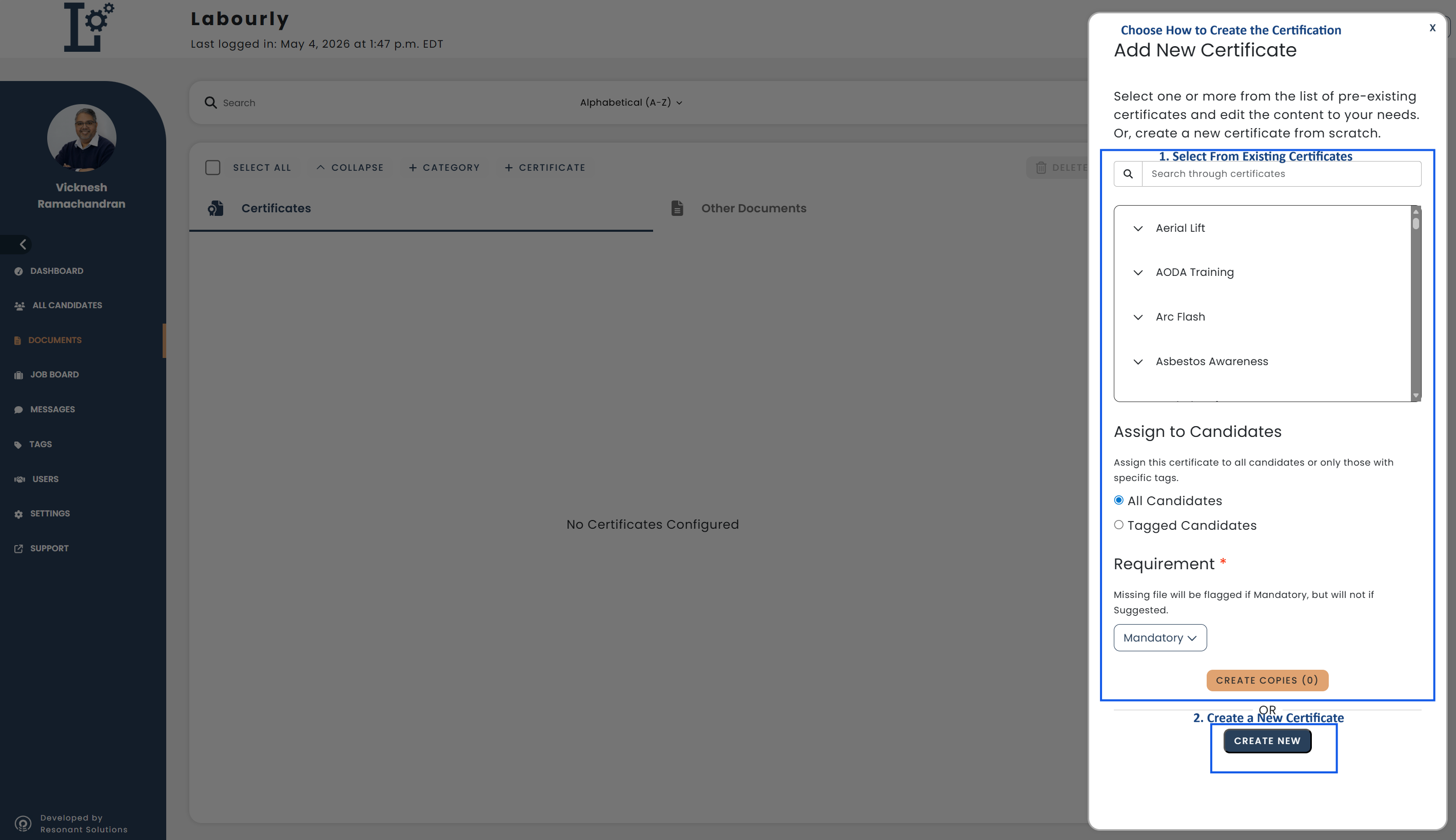
Choose how to create the Certification:
Option 1: Use an Existing Certificate
View steps
- Use the search bar (Search through certificates) to find a specific certification. Enter the name of the certification, then select it by checking the box next to it.
- You can also expand categories (e.g., Construction Safety, Fire Safety and Training) to browse available certifications.
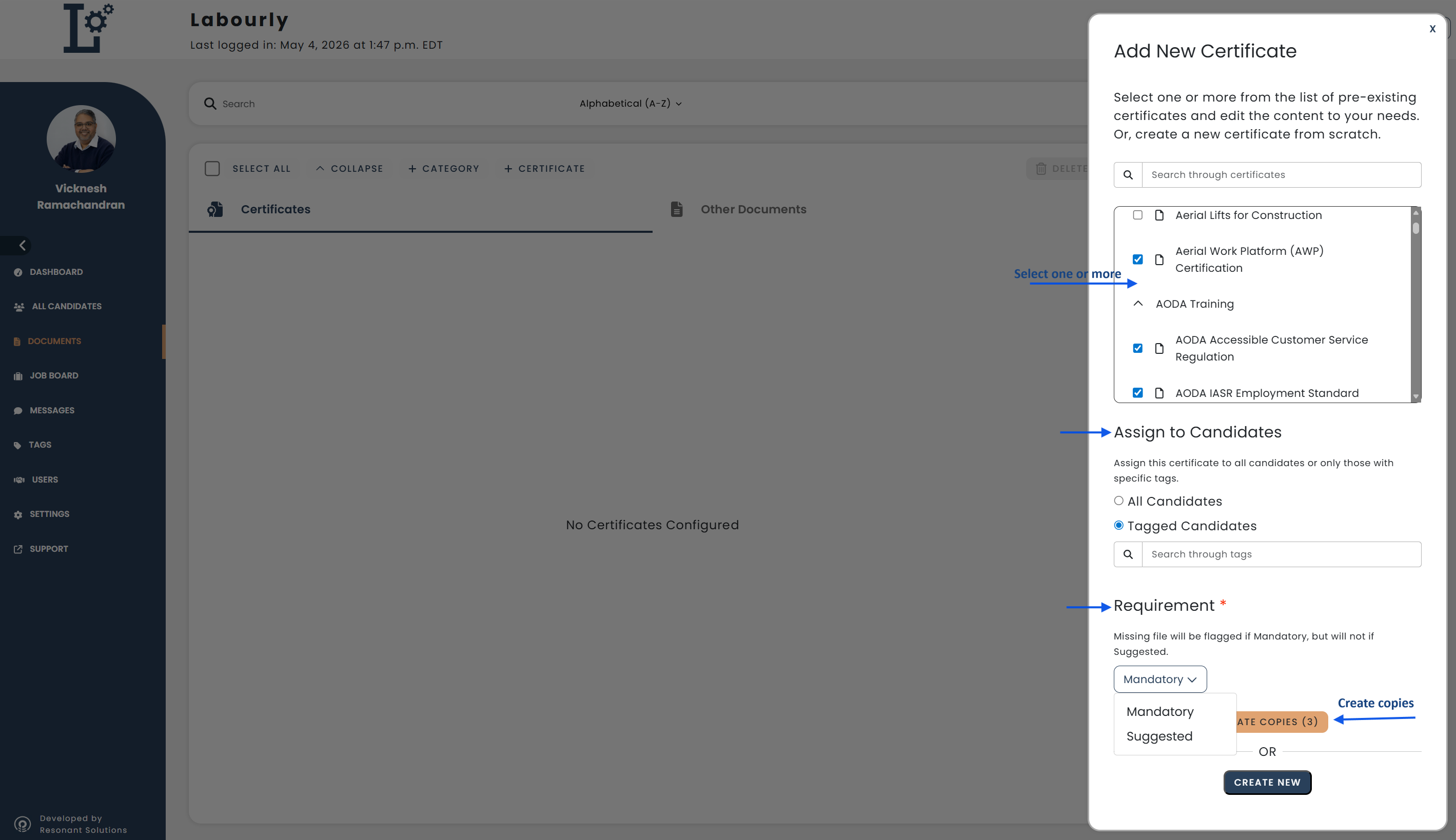
- Select one or more certificates from the list by checking the boxes next to them.
Before creating copies:
- Assign to Candidates
- All Candidates → The certification will be assigned to everyone
- Tagged Candidates → The certification will only be assigned to candidates with specific tags
- Requirement
- Mandatory→ The certification is required
- It will be assigned to the selected candidates (all or tagged)
- Candidates must upload it, and missing files will be flagged
- Suggested→ The certification is optional
- It will appear in the candidate’s list
- Candidates are not required to upload it
- Mandatory→ The certification is required
Click CREATE COPIES.
Option 2: Create a New Certificate
View steps
Click CREATE NEW.
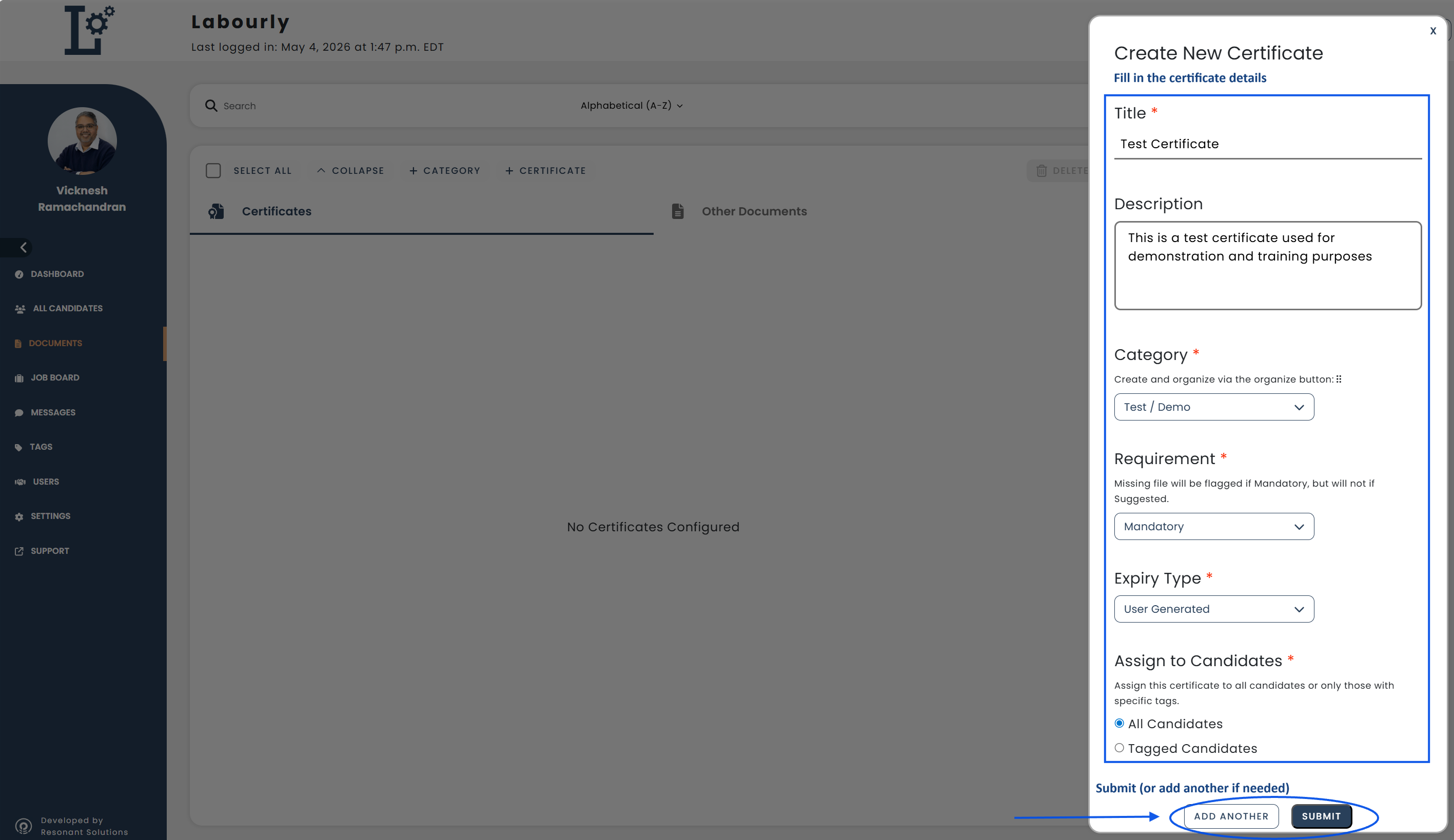
Fill in the following fields:
- Title → Enter the certification name
- Description → Add a short explanation
- Category → Select from the available category list or create a new one. see how to create category
- Requirement
- Mandatory→ The certification is required
- It will be assigned to the selected candidates (all or tagged)
- Candidates must upload it, and missing files will be flagged
- Suggested→ The certification is optional
- It will appear in the candidate’s list
- Candidates are not required to upload it
- Mandatory→ The certification is required
- Expiry Type
- NO EXPIRY → Select this if the certification does not expire
- USER GENERATED→ Select this if the certification expires
- Candidates will be able to enter the expiry date when uploading the certification
- Assign to Candidates
- All Candidates → The certification will be assigned to everyone
- Tagged Candidates → The certification will only be assigned to candidates with specific tags
(Optional) Click ADD ANOTHER.
Click SUBMIT.
Verify:
- Return to the Certifications section
- Confirm that the certification appears in the list
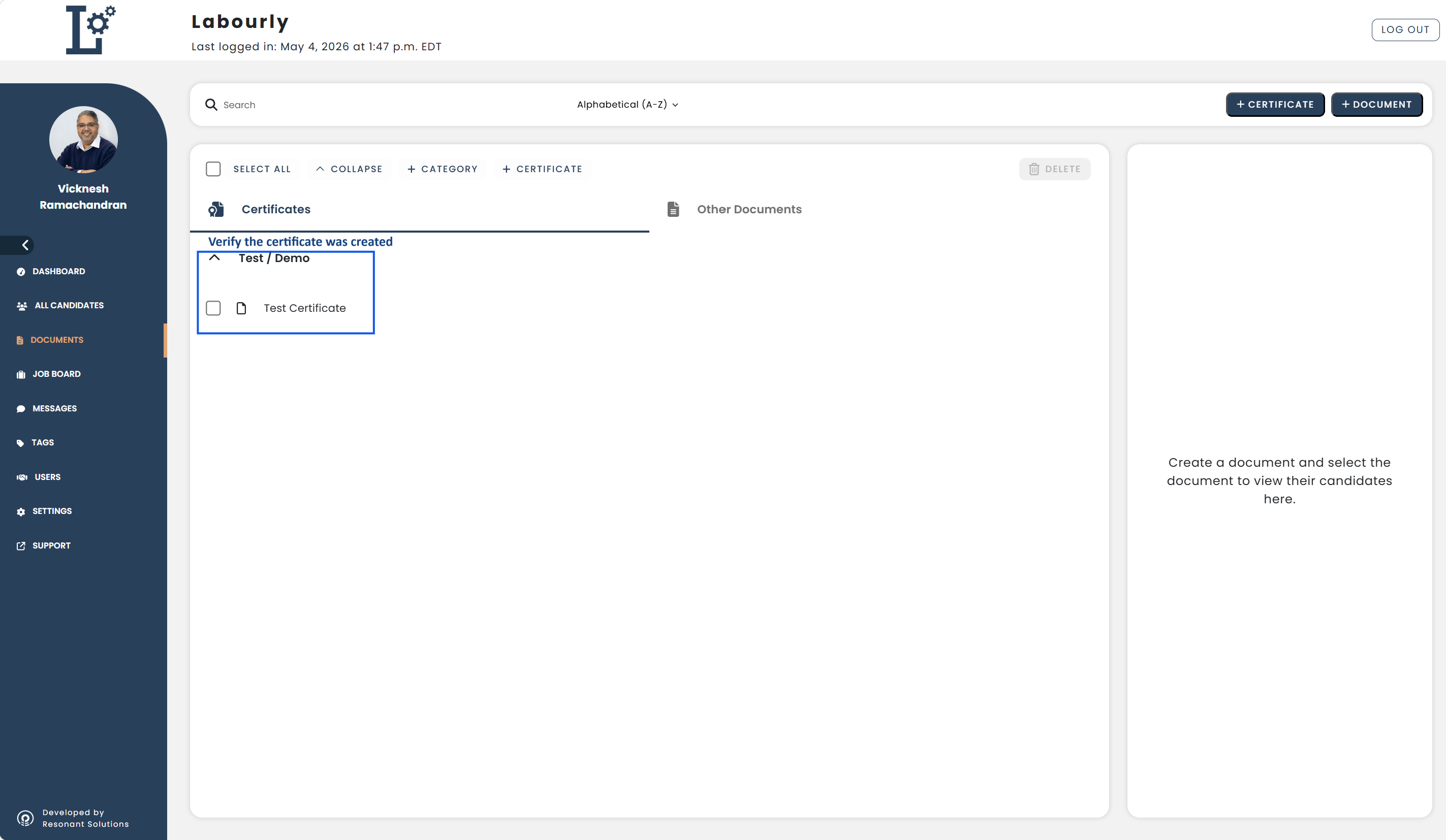
Your Certification database now has your custom list of Certifications that you can manage and customize.

If you require a certain certification from your Candidates, you can edit the certification and change the Requirement setting to Mandatory for all Candidates or only for Candidates with specific Tags.
See also: